An event card is an image of your event that each person personalizes with their own photo and name and posts on their profile. You design the artwork once, with the date, the venue and the look of the event, and mark the spots that change. Each attendee opens a link, fills in the fields and downloads their own card to post. Below you'll find what goes on the card, which card to make for each group at your event and the step-by-step to build yours today.
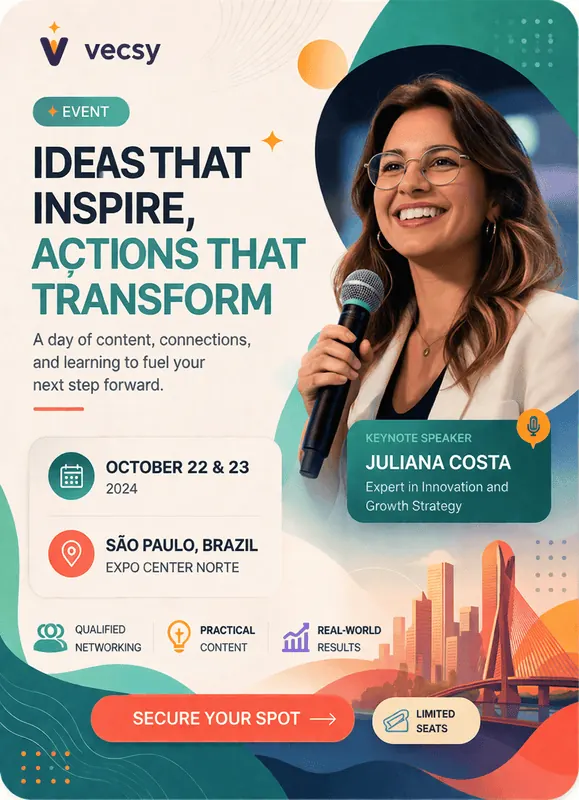
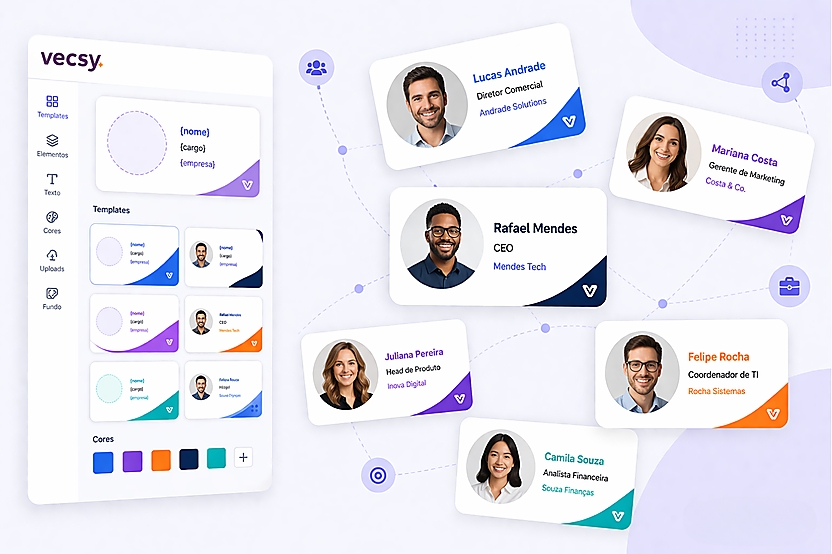
Speaker card for a fictional event made with Vecsy. The photo, name and specialty change for each speaker; the rest of the artwork is the same for everyone.
What goes on an event card?
Two parts. The fixed part is the same on every card: the event name, the date, the venue, the colors, the logo and the line that says the role of the person posting (“I'm going”, “keynote speaker”, “sponsor”). The part that changes is the fields each person fills in: the photo, almost always, plus name, job title or company when your audience posts on LinkedIn.
At Vecsy, we recommend stopping at three or four fields: each extra field is one more thing to type on a phone before downloading, and that's where many people give up. The speaker card above has three: photo, name and specialty.
Which card should you make for each group at your event?
Each group has a different reason to post, so it's worth making one card per group, with the same look:
- Attendee. The “I'm going” card, with the photo of the person who registered. It's the biggest group, so it's the card that travels furthest. The step-by-step for it is in how to create and share the “I'm going” card.
- Speaker. Photo, name, job title and, if it fits, the talk topic. Speakers post to their own network, which is often the audience you want.
- Sponsor. The company logo in place of the photo, plus the sponsorship tier. The company posts it on its profiles and in its newsletter.
- Countdown. “7 days to go”, with the photo of the person posting. It gives people who already posted a reason to post again close to the event.
- After the event. The “I went” card or the certificate of attendance, so people who were there can post the following week.
When to send each one, week by week, is in the event promotion calendar.
How to make your event card, step by step
Step 1: create an account and pick a starting point
Create a Vecsy account and, in your card list, choose between starting from a ready-made card template (“Create using templates”) or a blank card (“New Card”). The free trial gives you 1 active card and up to 100 downloads, with the “Created with Vecsy” watermark, no credit card required.
Step 2: build the fixed part
Upload your event artwork as an image, or adjust the template's, with the name, date, venue, colors and logo. Leave clear space where the photo and the name will go.
Step 3: mark the fields
In the editor, under Fields, add an image field for the photo (square, rounded or circle) and a text field for each piece of information that changes: name, job title, company. Then use the Test button to fill in the card as an attendee would and see the result.
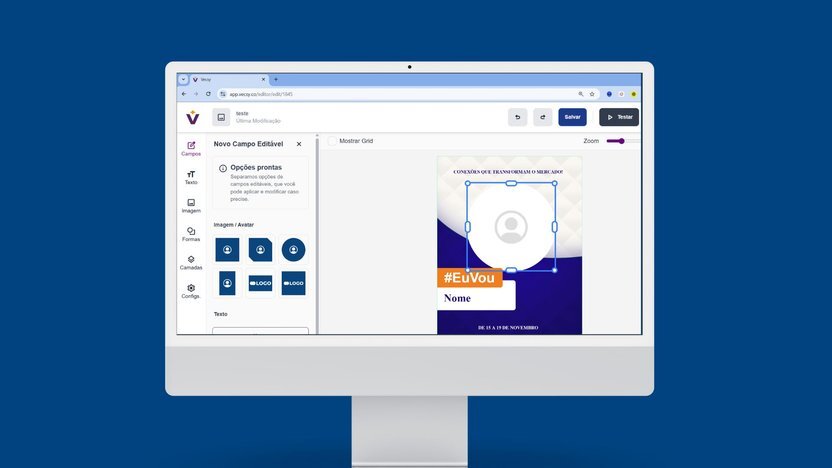
The Vecsy editor on the Fields tab, with the interface in Portuguese. The photo area and the Name field are what each attendee fills in.
Step 4: write the caption and publish
Write the caption that goes with the card, with the hashtag and the registration link already in it: attendees copy it when they post. Then publish the card. Saving keeps your work, but publishing is what makes the link live.
Step 5: send the link
Put the link on the registration thank-you page, in the confirmation email and in the event group. Attendees open it, fill in the fields, copy the caption and download the card or post it straight from there. In the dashboard, you see how many people accessed and downloaded it. If your event has several cards (attendee, speaker, sponsor), a page brings them all together under one link.
Want to see an event card working before you build yours? On the Vecsy home page, the demo lets you fill in the fields of a template and download the result.
What mistakes keep an event card from spreading?
- Sending the link before publishing. Until the card is published, anyone who opens the link sees “Disabled Template”. Open the link in a private window before sending it to your list.
- Forgetting the caption. Without it, the post goes out with no hashtag and no registration link, and leads nobody to the event.
- Making the photo too small. On a phone, a small face turns into a dot. The photo is the reason people post: after the event name, it should be the biggest thing on the card.
- Going over your plan's limit. Once downloads go over your plan's limit, the link also shows “Disabled Template”. Check the limit before sending the link to a list bigger than it.
When shouldn't you use an event card?
- The artwork is the same for everyone. If nobody needs to add a photo or a name, a single post made once in Canva that everyone reshares does the job.
- The event is private. An internal meeting or an embargoed launch: a direct invitation works, and a public post gets in the way.
- You want video. Vecsy generates images (PNG, plus PDF on the PRO plan), not video.
Read next